Week 7 Overview
Welcome to Week 7. This week you will learn how to generate a content-driven portfolio website using AI-assisted workflows.
Traditionally, when you create a portfolio website, you will need a content management system, which is usually need a server, costly, and not scalable. For example, if you host your website on Wix, you cannot migrate it to another web hosting service. In this week, you will learn an AI-based workflow to develop a static website that allow you to update content easily and host it on various providers for free.
What you will need this week:
- Cursor or similar tools
- GitHub
- Screenshot tool
- All your projects in this course
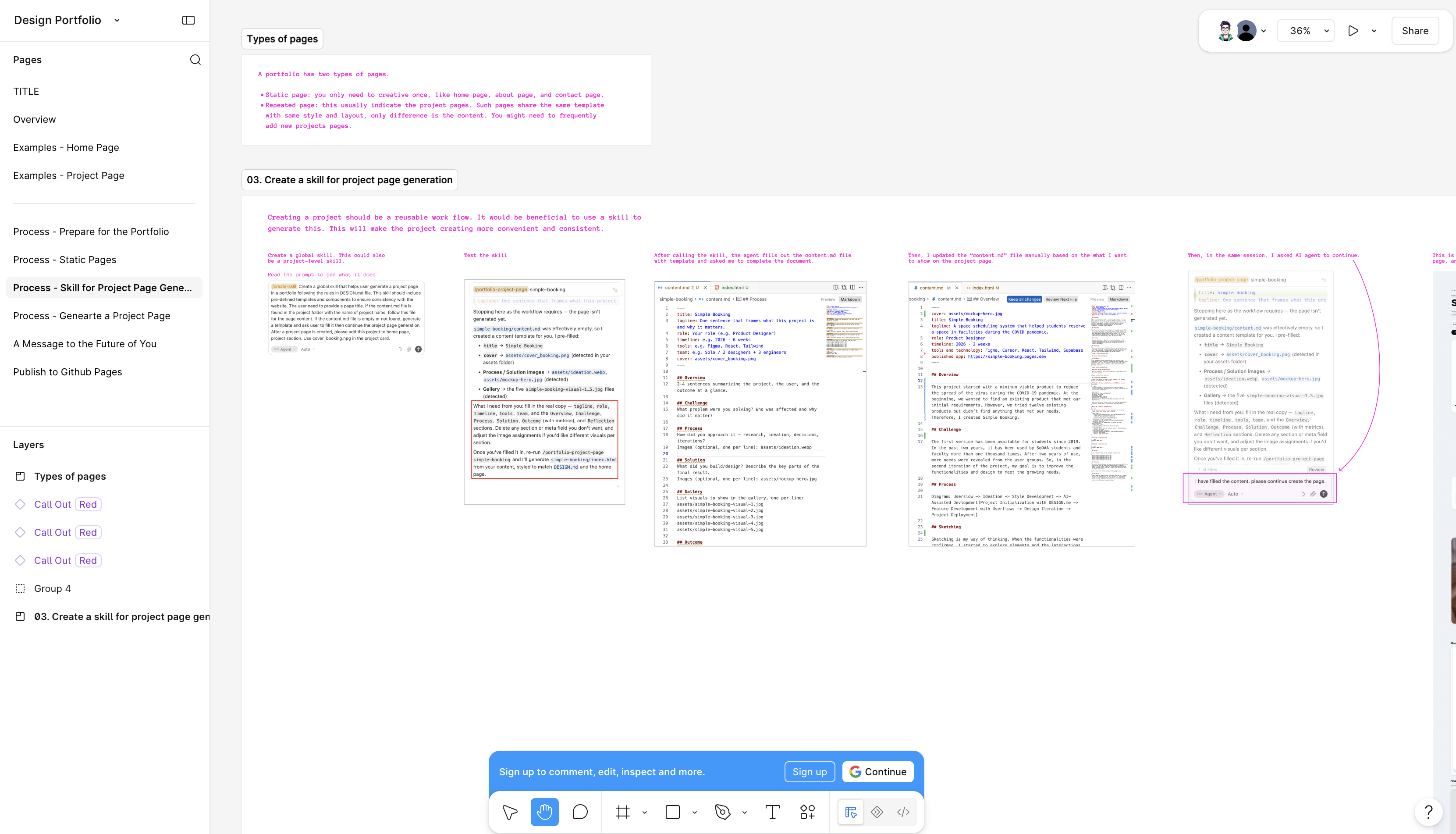
Examples: Home Page
Examples: Project Page
Vibe Code a Portfolio
The following section will guide you through the process of portfolio website development. To view the published demo portfolio, please see here: https://hua3467.github.io/demo-portfolio/
Click the next to continue.
Prepare for the Generation
Before you start, prepare following:
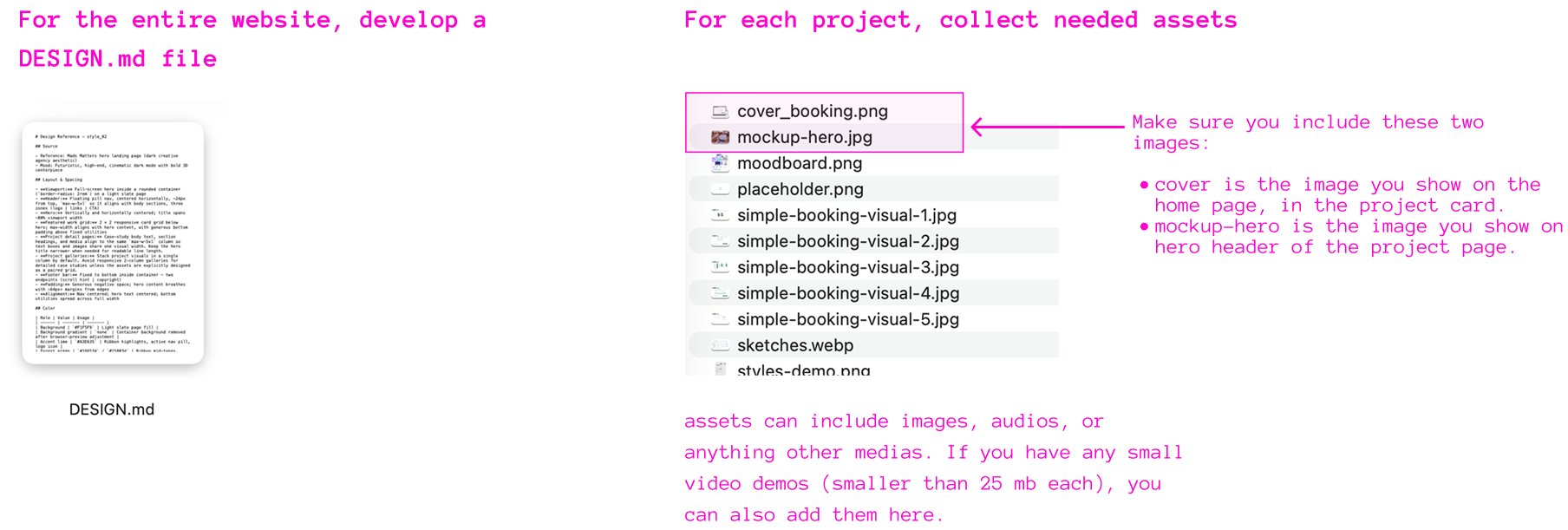
File Structure
Before the prompting process, here is how your file structure could look like. Note, this is a vanilla HTML/CSS/JS website, no framework needed for this project.
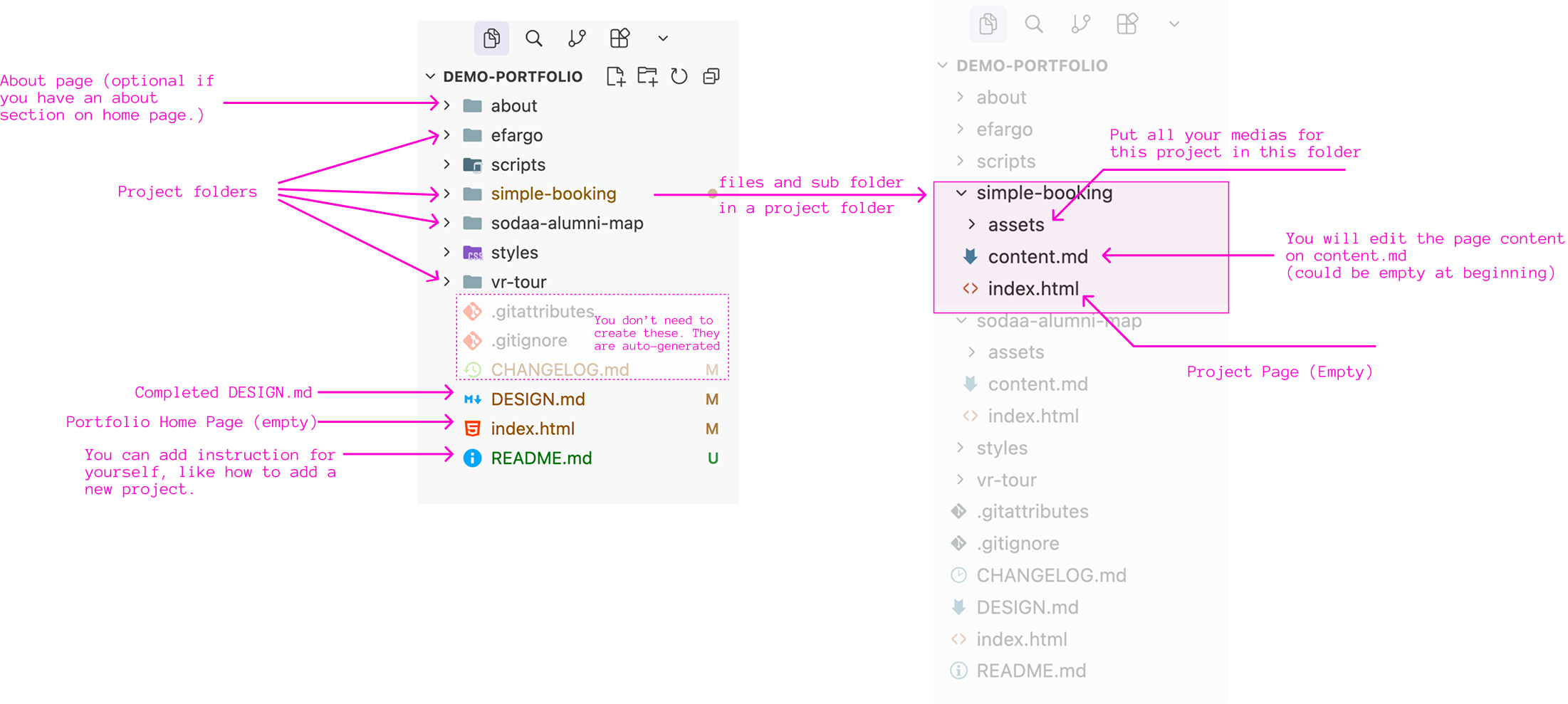
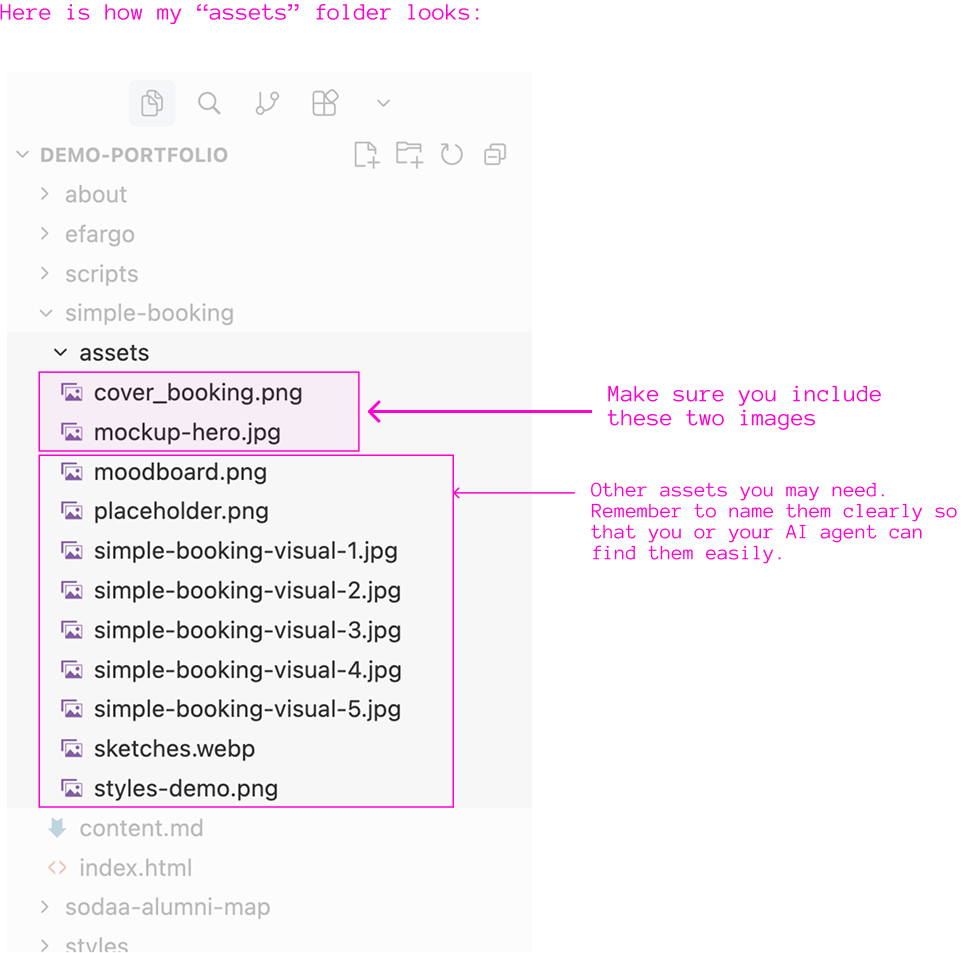
Here is how my "assets" folder looks:
Creating Static Pages
Create a Skill for Project Page Generation
Using the Skill to Generate a Project Page
Write the Instruction
Building a portfolio is a long-term process. In the future, you might forget the name of a skill or change your coding tool. So, you can consider adding some instructions in your README.md file to remind yourself about the process in the future. You can use a prompt like the one below:
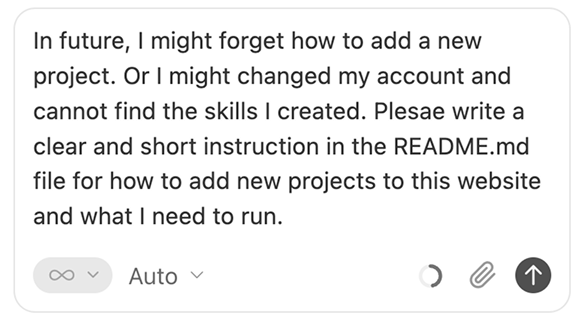
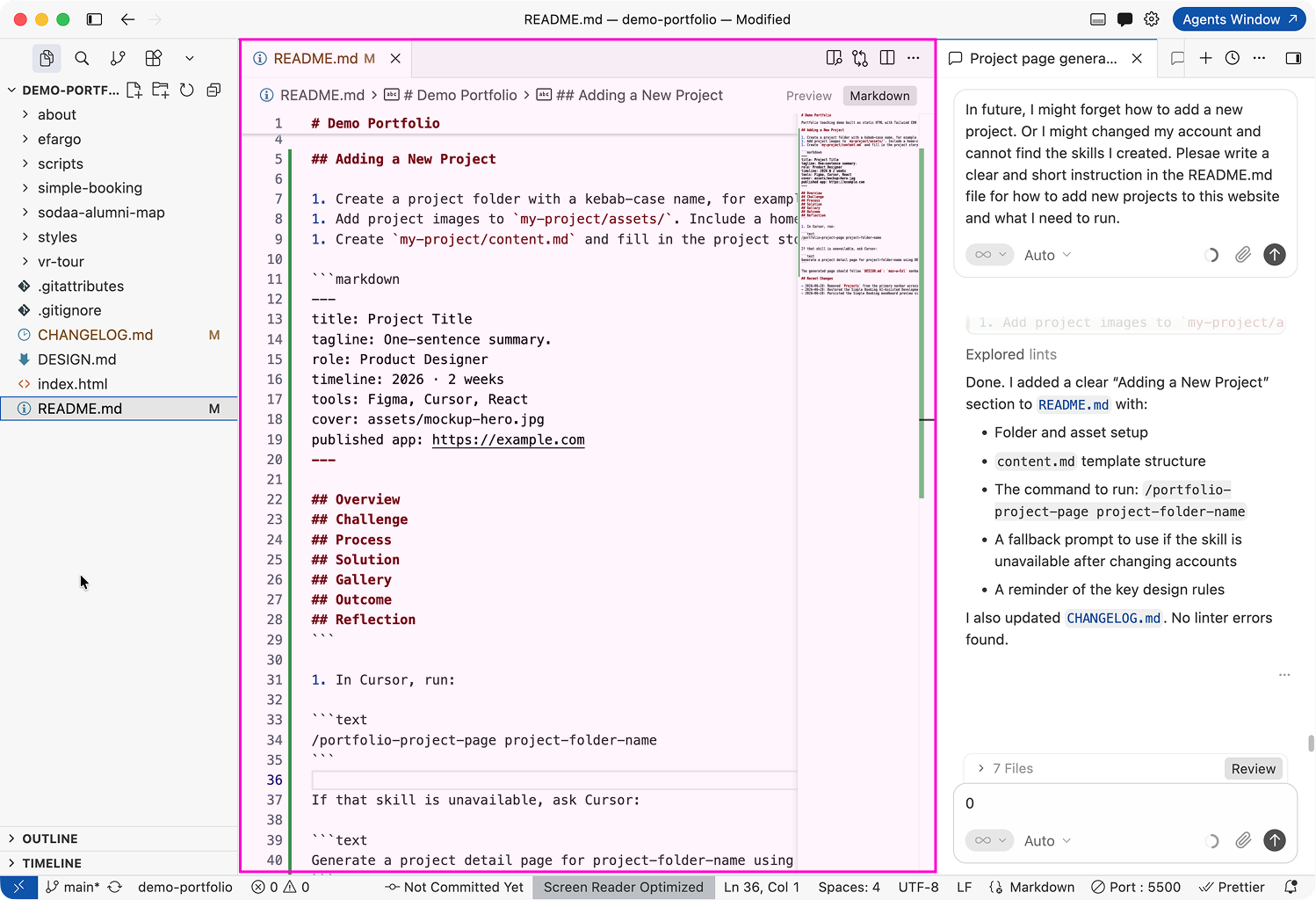
This will add some instructions for future reference. After the generation, double-check the file to ensure everything is clear enough.
Publish to GitHub Pages
What is GitHub Pages?
GitHub Pages allows you to publish a static website in your account for free. Following instruction shows you how to publish a vanilla HTML/CSS/JS website on GitHub. If you want to publish a ReactJS project, it would need additional steps, which is not covered here.
How to Deploy a website on GitHub Pages?
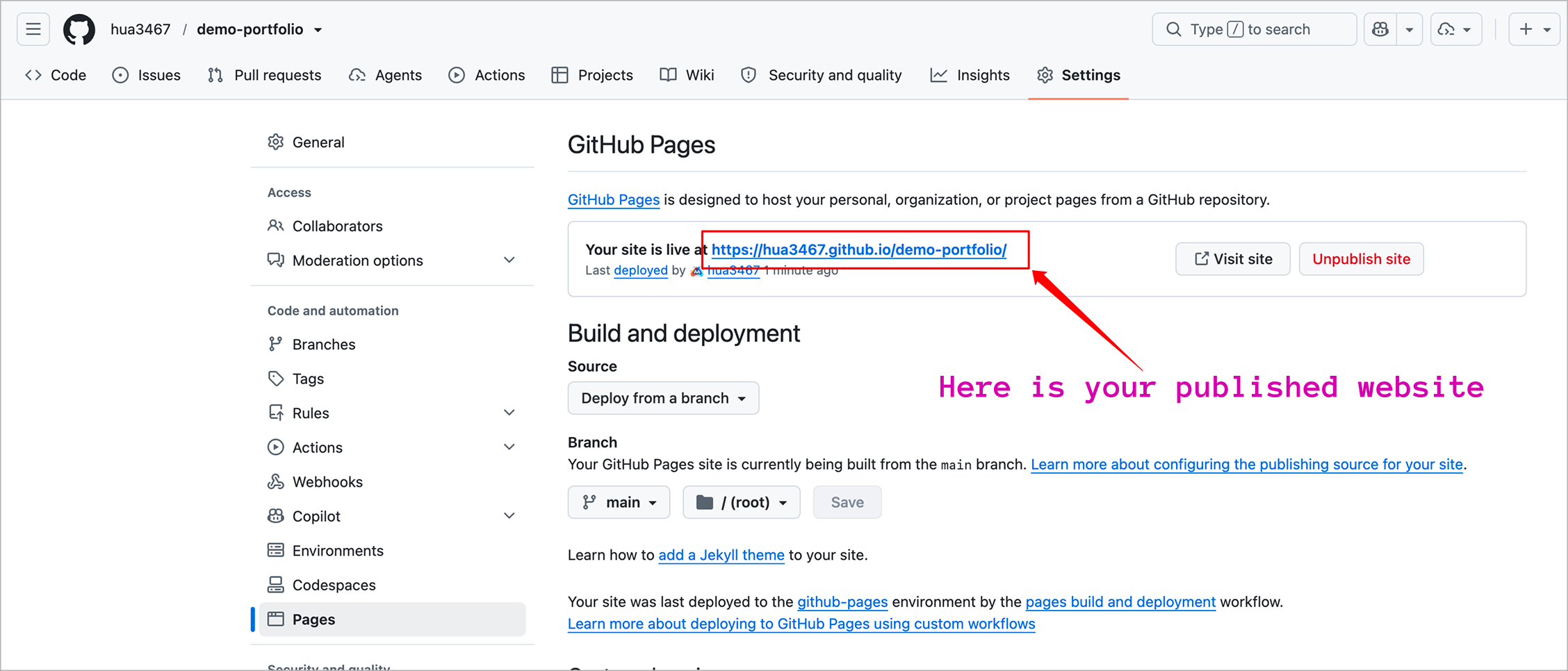
Step 1. Push your portfolio site to Github, go to the repo page, then find "Pages" under Settings.
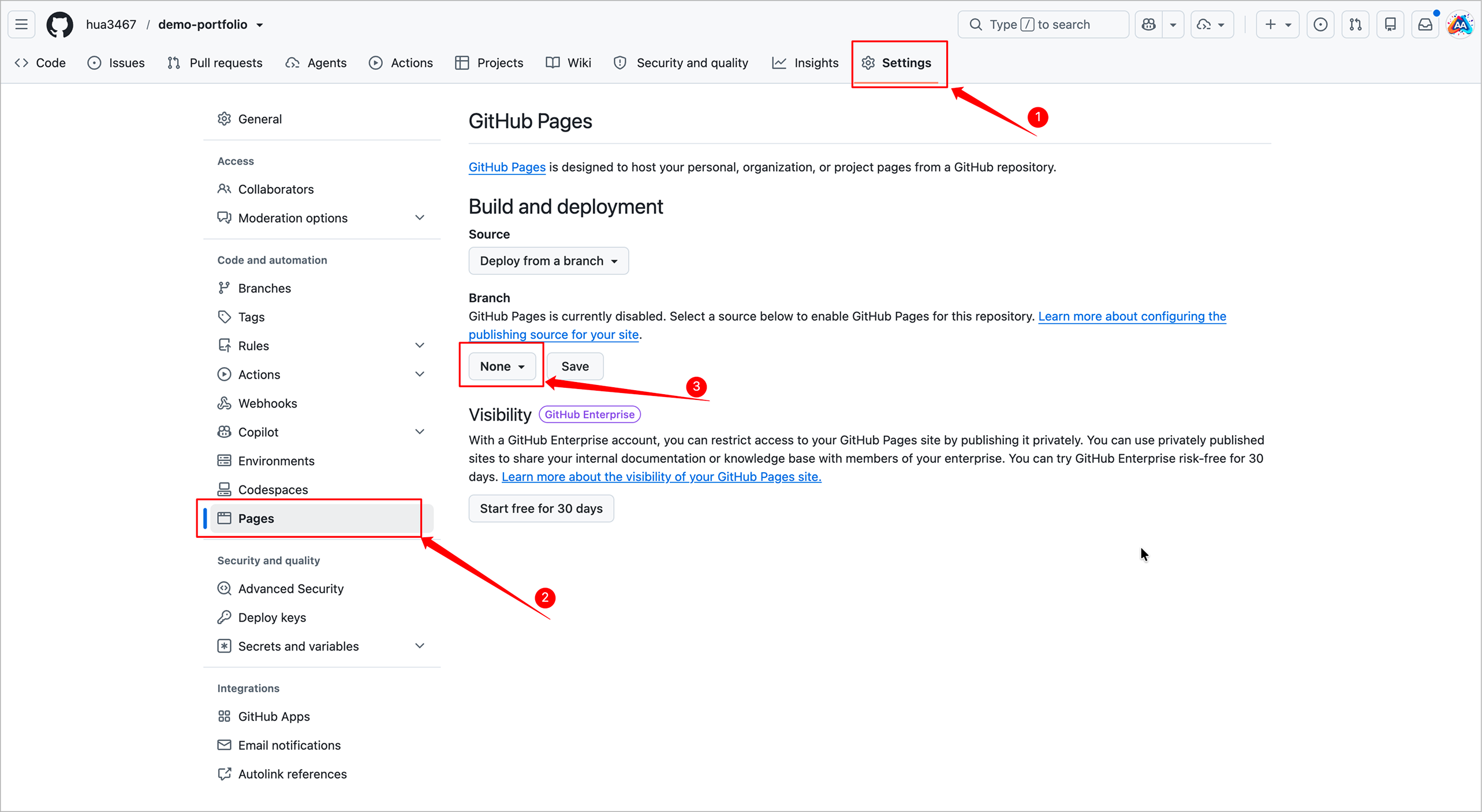
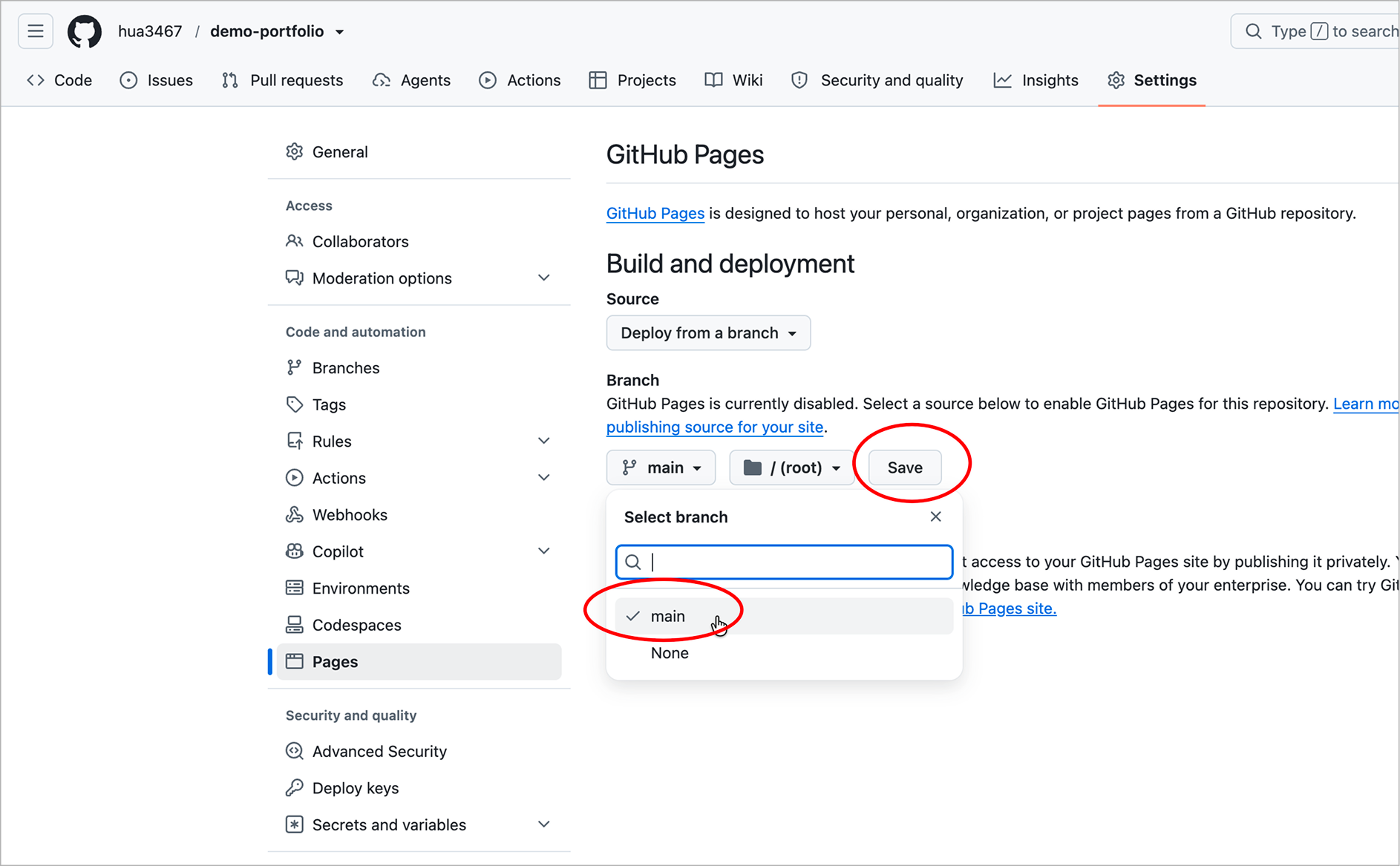
Step 2. Select "main" under Branch, then click Save button.
Published Site: It could take minutes to hours. Refresh the page, when you see a message "Your site is live at http://...," that indicates your website is live online.
What to Do
Bigger Mini Project: Vibe Coding Portfolio
In the following two weeks, you will develop your last mini project: a vibe coding portfolio. This portfolio should include your course project and at least three mini projects. Here is what you will do:
- Following "Prepare for Generation" section to prepare for the website development. This should be a pure HTML website without any frameworks.
- Create a home page for the portfolio, and (optional) about page and contact page. See "Create Static Pages" section.
- Create a skill that can help you generate a project page following "Create Skill" section. You can name it as
portfolio-project-pageor any other name you like. - Using the skill you created to generate project pages for this portfolio and make necessary adjustment on details. See "Use Skill" section.
- Write a brief instruction for how to add projects to this portfolio. See "Write Instruction" section.
- Publish this website to GitHub Pages. See "Publish to GitHub Pages" section.
- Submit the link of the published site to Week 7: https://canvas.iastate.edu/courses/127779/assignments/2814323. Note: this is the link of the published portfolio, not the repository of the project.
Plan for the Next Two Weeks
- By July 7th: Submit the published portfolio link to Canvas. At this moment, this is only for review and feedback, it does not have to be completed. Please complete a home page and one or two project pages. You can still update the website after publishing.
- July 7th - July 9th: Your website will be reviewed for feedback.
- By July 13th: Your portfolio website is finalized.